Programming Stewy
Here is a guide on how to install, setup, and use the software for uploading code to Stewy.
Download Code From Github
-
Go to Stewy's GitHub Repo here
-
Click the Code dropdown and select "Download Zip"

-
Find the Downloaded in file explorer
-
Extract the zip file to the place you want to store it
Download the Arduino IDE
-
Go the the Arduino website here
-
Scroll down untill you find the download button for Arduino IDE

-
Select the version in the dropdown that works with your computer
-
Click the download button
-
Once the download has finished, run the installer
Setup IDE for Stewy's Base
-
Open the Arduino IDE
-
In Arduino IDE go to File > Open, find the folder that you extracted and open Stewy.ino
-
Open the Boards Manager by going to Tools > Board > Board Manager
-
In the Board Manager search "ESP32" and install Arduino ESP32 by Arduino

-
Select the correct board by selecting Tools > Board: > Arduino ESP32 Boards > Arduino Nano ESP32

Upload Code to Stewy's Base
-
Go to Tools > Port and select the serial port that appears when you plug in the base microcontroller (Nano ESP32 S3) to your computer


-
Click the upload arrow in the top left corner to upload the code stewy.ino to your base microcontroller.
Setup IDE for Stewy's Head
-
Open the Arduino IDE
-
In Arduino IDE go to File > Open, find the folder that you extracted into, and open head > head.ino
-
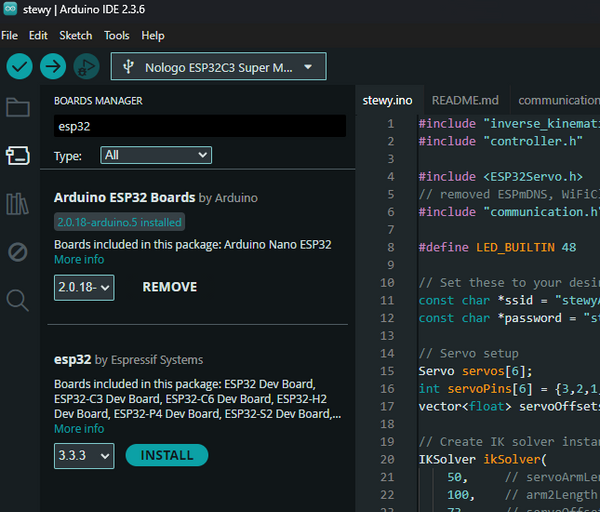
Open the Boards Manager by going to Tools > Board > Board Manager
-
In the Board Manager search "esp32" and install esp32 by Espressif Systems
-
Select the correct board by selecting Tools > Board: > esp32 > Nologo ESP32C3 Super Mini.

Upload Code to Stewy's Head
-
Go to Tools > Port and select the serial port that appears when you plug in the head microcontroller (ESP32 Super Mini) to your computer


-
Click the upload arrow in the top left corner to upload the code stewy.ino to your base microcontroller.
Troubleshooting
-
Try a different USB cable (some are power-only, no data)
-
Check for loose connections
-
Double check that you have the correct board selected
-
Double check that the COM Port you have selected goes away when you unplug your board
-
If you still have problems, make a post in the help group here that explains what is happening. and I will try my best to help. Please include as much info as you can including:
-
what board you are trying to upload to
-
if the com port goes away when you unplug
-
how far along in the process you are able to get.
-
any error message when you upload
-
the color of the lights on your board and if they are flashing
-